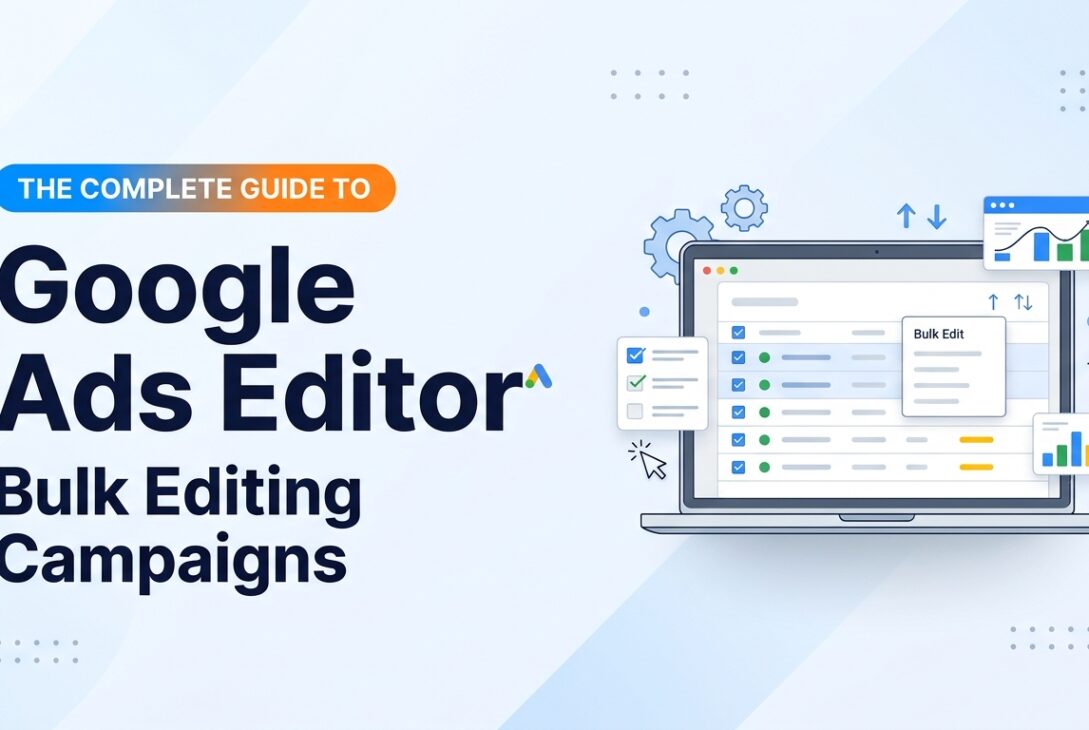
Google Ads Editor is Google’s free desktop application for managing campaigns in bulk. Instead of clicking through the web interface one change at a time, you download your account, make hundreds or thousands of edits offline, review them, and post everything back to Google Ads in one go.
For anyone managing large accounts, multiple clients or frequent campaign launches, it can save hours every week.
This guide covers everything you need to know: what Google Ads Editor is and when to use it, how to download and set it up, a tour of the interface, the core workflow, powerful bulk editing techniques, building campaigns from spreadsheets, time-saving shortcuts and the limitations to keep in mind.
If you’re new to paid search, our guide to pay-per-click advertising explains the basics of campaigns, keywords and bidding that make the rest of this tutorial easier to follow.
What Is Google Ads Editor and When Should You Use It?
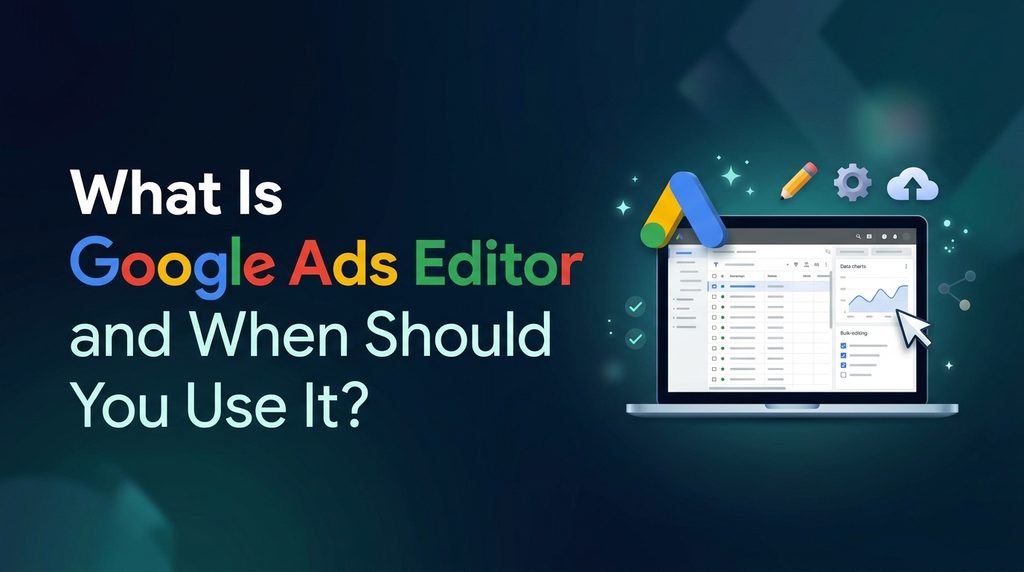
Google Ads Editor is a free app for Windows and Mac that syncs with your Google Ads accounts. You download account data to your computer, edit it offline and upload the changes when you’re ready.
| Task | Google Ads web interface | Google Ads Editor |
|---|---|---|
| Quick single change | Faster | Slower to open and sync |
| Hundreds of edits at once | Slow and repetitive | Fast with bulk tools |
| Building large new campaigns | Many screens and clicks | Paste from spreadsheets in minutes |
| Copying campaigns between accounts | Limited | Simple copy and paste |
| Working offline | Not possible | Fully supported |
| Viewing detailed reports and recommendations | Best | Basic statistics only |
Use Google Ads Editor when you need to:
#1. Launch large campaigns with many ad groups, keywords and ads.
#2. Make the same change across many campaigns, such as updating a promotion or URL.
#3. Restructure accounts, move ad groups or rename items consistently.
#4. Copy proven campaigns to new accounts or markets.
#5. Draft changes offline for review before they go live.
The web interface is still better for reporting, recommendations and new features, which often appear there first. Most experienced advertisers use both. Keep an eye on our monthly Google Ads updates roundup, since new campaign features can take time to arrive in Editor.
How to Download and Set Up Google Ads Editor
Setup takes about ten minutes:
#1. Download Google Ads Editor from Google’s official Google Ads Editor page for Windows or Mac.
#2. Install and open the app.
#3. Click Add and sign in with the Google account that has access to your Google Ads account or manager account (MCC).
#4. Select the accounts you want to manage. Manager account users can add many client accounts at once.
#5. Choose which campaigns to download. For large accounts, you can download only selected campaigns to keep things fast.
#6. Optionally, choose to download statistics so you can see performance data for a chosen date range inside Editor.
Once your account appears in the account list, you’re ready to start editing. Keep the app updated, as Google releases new versions several times a year with support for new campaign types and features.
A Quick Tour of the Google Ads Editor Interface
The layout looks busy at first, but it follows a simple pattern:
| Area | Where it is | What it does |
|---|---|---|
| Account list and tree view | Top left | Lets you switch accounts and drill into campaigns and ad groups |
| Type list | Bottom left | Lists item types such as campaigns, ad groups, keywords, ads, extensions (assets), audiences and negative keywords |
| Data view | Center | Shows rows for whatever you selected, like a spreadsheet |
| Edit panel | Right or bottom | Shows editable fields for the selected rows |
| Top toolbar | Top | Get recent changes, Check changes, Post, Make multiple changes and Replace text |
| Filters and search | Above the data view | Narrows the rows you see by name, status, text or performance |
The key idea: choose where you are in the tree (account, campaign or ad group), choose what type of item you want to see, then select rows in the data view and edit them in the panel. Selecting many rows and changing a field updates all of them at once, which is the basis of bulk editing.
The Core Google Ads Editor Workflow
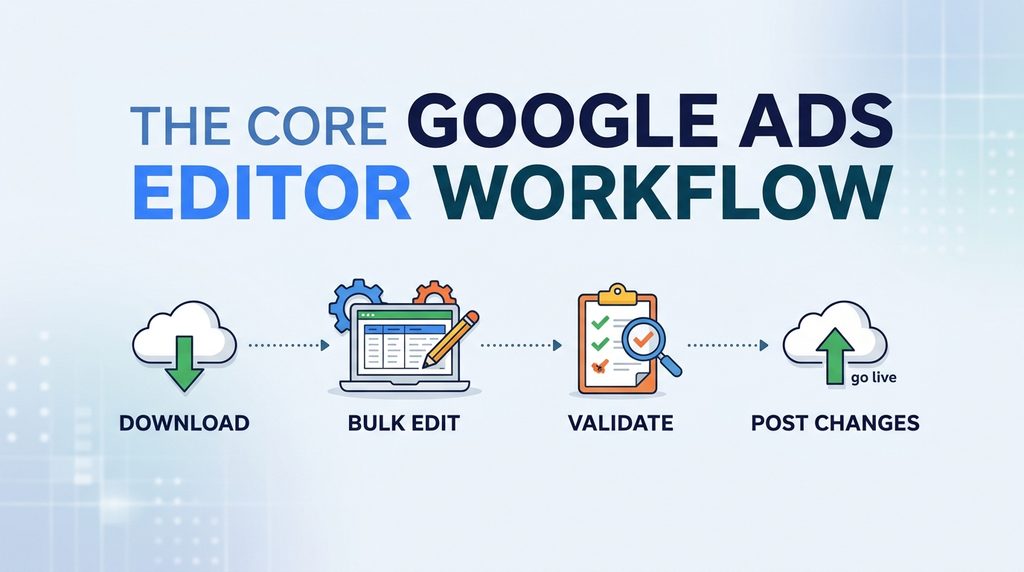
Every session follows the same four steps:
#1. Get recent changes. Before editing, click Get recent changes to download the latest version of your account. This avoids overwriting edits made in the web interface or by teammates.
#2. Make your edits. Change bids, budgets, ad text, URLs, keywords and settings offline. Edited items are marked so you can see what’s pending.
#3. Check changes. Click Check changes to have Editor look for errors and policy warnings, such as text that’s too long or missing required fields. Fix any problems before posting.
#4. Post. Click Post to upload your changes to Google Ads. You can post everything or only selected changes, and Editor shows a summary of what succeeded or failed.
Until you post, nothing changes in your live account. That makes Editor a safe place to prepare large updates, share them with a colleague for review, or even keep them as drafts and post later. If you make a mistake before posting, you can use Undo or revert selected changes.
It’s also a good habit to export a backup before major edits. Use File, Export, to save a copy of your campaigns, so you can compare or restore if needed. Regular backups are part of any careful Google Ads account audit process.
Bulk Editing Techniques in Google Ads Editor
These tools are where Google Ads Editor saves the most time.
#1. Multi-select editing
Select many rows at once, such as all keywords in a campaign, then change a field in the edit panel. Every selected item updates together. Use this to change bids, statuses, final URLs or match types across hundreds of items in seconds.
#2. Find and replace text
Use Replace text to swap words across headlines, descriptions, URLs or keywords. For example, change “Spring Sale” to “Summer Sale” in every ad, or update a domain in all final URLs. You can preview the matches before applying the change. This is especially useful when refreshing seasonal ad copywriting across large accounts.
#3. Append text
Add text to the start or end of existing fields, such as adding “| Free Shipping” to the end of headlines or a tracking parameter to URLs.
#4. Change bids and budgets in bulk
Select keywords or ad groups and raise or lower bids by a set amount or percentage. You can also set budgets for many campaigns at once.
#5. Copy and paste anywhere
Copy campaigns, ad groups, ads or keywords and paste them into another campaign or another account entirely. This is the fastest way to duplicate a proven campaign for a new market or client.
#6. Manage negative keywords at scale
Add negative keywords to many campaigns or ad groups at once, or build shared lists and apply them across the account. A well-maintained negative keyword list stops wasted spend on irrelevant searches.
#7. Use advanced filters
Filter rows by text, status, performance or recent changes, for example “keywords with zero conversions and more than 100 clicks.” Then edit only the rows that matter.
Building Campaigns From Spreadsheets
One of Editor’s most powerful features is Make multiple changes, which lets you paste data straight from Excel or Google Sheets.
#1. Plan your campaign in a spreadsheet with columns such as Campaign, Ad group, Keyword, Match type, Max CPC and Final URL.
#2. In Google Ads Editor, select the item type (for example, keywords) and click Make multiple changes.
#3. Choose where the data should go, either into selected ad groups or using the campaign and ad group names in your columns.
#4. Paste your data and map each column to the right field.
#5. Review the preview, fix any errors, and click Finish and review changes.
#6. Check changes, then post.
| Spreadsheet column | Example value |
|---|---|
| Campaign | Running Shoes – US |
| Ad group | Trail Running Shoes |
| Keyword | trail running shoes for women |
| Match type | Phrase |
| Max CPC | 1.20 |
| Final URL | https://example.com/trail-shoes |
This approach turns hours of manual setup into minutes. It works best when your keyword list is well organized, so start with solid keyword research grouped into tight themes.
You can import responsive search ads, assets and other items the same way. Some newer campaign types, such as Performance Max campaigns, can also be created and edited in Editor, though certain settings may still need the web interface.
Time-Saving Tips and Shortcuts
These habits help you work faster and avoid errors:
#1. Learn the keyboard shortcuts. Standard ones like Ctrl+A (select all), Ctrl+C and Ctrl+V (copy and paste) and Ctrl+Z (undo) work throughout Editor (Cmd on Mac), and Editor adds its own shortcuts for actions such as getting recent changes and posting. Check the Help menu for the full list in your version.
#2. Use the custom view and column settings to show only the fields you need, such as bid, status and final URL.
#3. Add comments to items so teammates know why a change was made.
#4. Use labels to group items, such as “Holiday 2026” or “Test,” then filter by label for quick bulk edits.
#5. Download statistics for a recent date range so you can filter by performance, for example pausing keywords with high cost and no conversions.
#6. Save frequently used filters to reuse them in future sessions.
#7. Use Editor’s export and import options to share proposed changes with clients for approval before posting.
When you change bids in bulk, think about how they interact with automated bidding. If campaigns use automated strategies, manual bid edits may have no effect.
Our guide to smart bidding strategies explains which bid settings matter for each strategy. And when you launch new ad versions in bulk, set them up as proper experiments; structured A/B testing ads shows which changes truly improve results.
Limitations of Google Ads Editor
Google Ads Editor is powerful, but it doesn’t do everything:
| Limitation | What to do instead |
|---|---|
| Limited reporting and no recommendations tab | Use the web interface for detailed reports and insights |
| New features may arrive later than in the web interface | Check our Google Ads updates roundup and update Editor regularly |
| Some settings for newer campaign types can only be changed online | Finish those settings in the web interface |
| Changes aren’t live until posted | Remember to post, and check results after posting |
| Risk of overwriting recent web changes | Always get recent changes before editing |
| Google Ads only | Use each platform’s own tools for Meta, Microsoft, TikTok and others |
The last point matters for multi-channel advertisers. Google Ads Editor only manages Google campaigns, so if you also run short-form video ads, you’ll need TikTok’s own tools and an eye on TikTok algorithm changes to keep those campaigns on track. Microsoft Advertising offers its own similar desktop editor for Bing campaigns.
Common Google Ads Editor Mistakes
Avoid these errors that can cause costly problems:
#1. Forgetting to get recent changes before editing, then overwriting newer web edits.
#2. Posting without checking changes, which can push errors live or leave items unposted.
#3. Bulk-editing without a backup, making it hard to undo a large mistake after posting.
#4. Using find and replace too broadly, such as replacing a short word that appears inside other words.
#5. Copying campaigns between accounts without updating final URLs, tracking templates or conversion goals.
#6. Launching new campaigns without confirming conversion tracking works, which leaves automated bidding with nothing to optimize toward.
#7. Leaving drafts unposted for days, then posting outdated changes.
A simple rule prevents most problems: get recent changes, back up, edit, check, post, and then verify in the web interface.
Frequently Asked Questions
Is Google Ads Editor free?
Yes. Google Ads Editor is a free download for Windows and Mac.
Do changes in Google Ads Editor go live immediately?
No. Changes stay on your computer until you click Post. This lets you review, check and approve edits before they affect live campaigns.
Can I manage multiple accounts in Google Ads Editor?
Yes. You can add many accounts, including all clients under a manager account, and copy items between them.
Does Google Ads Editor support all campaign types?
It supports most campaign types, including Search, Display, Video, Shopping, Demand Gen and Performance Max, but some newer features and settings may only be available in the web interface. Google’s Google Ads Editor Help Center lists what each version supports.
Is there a bulk editor for Facebook ads?
Meta doesn’t offer a desktop editor like this, but you can duplicate, bulk-edit and import or export ads inside Ads Manager. Our Facebook Ads Manager tutorial covers the basics.
Conclusion: Work Faster With Google Ads Editor
Google Ads Editor turns hours of repetitive clicking into minutes of focused work. Download your account, use multi-select editing, find and replace, copy and paste and spreadsheet imports to make changes at scale, then check and post them in one batch.
Pair Editor with the web interface for reporting and new features, and follow a simple routine of getting recent changes, backing up and checking before every post.
Once you master it, you’ll launch campaigns faster, keep large accounts tidy and spend more time on strategy instead of admin. Strong Google Ads Editor skills are also a real advantage if you’re building a career in paid search; our guide to digital marketing jobs explains which roles value them most.